웹 프로젝트를 하게 되면 항상 사용하게 되는 UI가 몇가지 정해져 있습니다.
그때마다 새로 U를 코딩하는 것보다는 미리 준비해 두면 작업 효율이 훨씬 좋아집니다.
그런 이유로 몇가지 중요한 UI 샘플을 준비해 보았습니다.
코딩에 도움 된다면 좋겠습니다.
완성본 미리보기
https://codepen.io/lshjju/pen/KwgbGJR
material-ui-kit-improvement
...
codepen.io
CSS 기본 코드 세팅 합니다.
테스트를 위해 일단 텍스트 콘텐츠 먼저 마크업 합니다.
기본적인 CSS 작성 합니다.
통합 미디어 쿼리 작성 합니다.
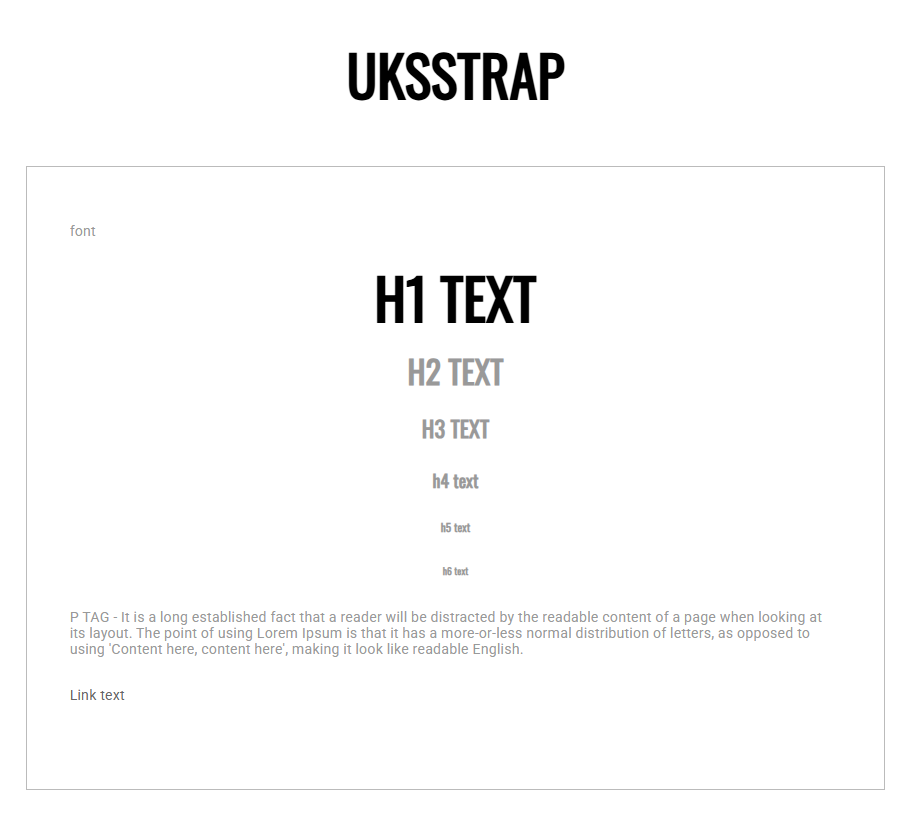
<!doctype html>
<html lang="en">


<head>
  <meta charset="UTF-8">
  <meta name="viewport" content="width=device-width, initial-scale=1, maximum-scale=3.0">
  <title>jinuk---------</title>
  <link rel="stylesheet" href="style.css">
  <style type="text/css"></style>
  <script type="text/javascript" src="http://code.jquery.com/jquery-latest.js"></script>
  <script type="text/javascript" src="script.js"></script>
  <script type="text/javascript"></script>
</head>


<body>


  <h1>UKSSTRAP</h1>


  <article>

    <section>
      <p>font</p>
      <h1>h1 text</h1>
      <h2>h2 text</h2>
      <h3>h3 text</h3>
      <h4>h4 text</h4>
      <h5>h5 text</h5>
      <h6>h6 text</h6>
      <p>P TAG - It is a long established fact that a reader will be distracted by the readable content of a page when
        looking at its layout. The point of using Lorem Ipsum is that it has a more-or-less normal distribution of
        letters, as opposed to
        using 'Content here, content here', making it look like readable English.</p>
      <p><a href="">Link text</a></p>
    </section>

  </article>


</body>


</html>
@charset "utf-8";
@import url('https://fonts.googleapis.com/css?family=Roboto&display=swap');
@import url('https://fonts.googleapis.com/css?family=Oswald&display=swap');
@import url('https://fonts.googleapis.com/css?family=Playfair+Display&display=swap');
* {
margin: 0;
padding: 0;
box-sizing: border-box;
border: 0px solid #eee;
}
body {
margin: 60px 0;
font-family: 'Roboto', sans-serif;
font-size: 0.9rem;
line-height: 1rem;
color: #999;
letter-spacing: 0.1px;
word-break: keep-all;
}
img {
width: 100px;
}
h1,
h2,
h3,
h4,
h5,
h6 {
font-family: 'Oswald', sans-serif;
margin-bottom: 30px;
text-align: center;
}
h1,
h2,
h3 {
text-transform: uppercase;
}
h1 {
font-size: 3.5rem;
line-height: 3.5rem;
color: black;
}
h2 {
font-size: 2rem;
line-height: 2rem;
}
h3 {
font-size: 1.4rem;
line-height: 1.4rem;
}
h4 {
font-size: 1.1rem;
line-height: 1.4rem;
}
h5 {
font-size: 0.7rem;
line-height: 0.7rem;
}
p {
margin-bottom: 30px;
}
a:link {
color: #666;
text-decoration: none;
}
a:visited {
color: #666;
}
a:hover {
color: red;
}
a:active {
color: red;
}
button {
width: 100%;
padding: 12px;
margin-bottom: 16px;
background: #fff;
text-align: center;
font-size: 0.7rem;
border: 1px solid #444;
color: #666;
text-transform: uppercase;
transition: 0.5s;
cursor: pointer;
}
button:hover {
background: #666;
border: 1px solid #111;
color: #fff;
}
article {
margin: 64px 5%;
border: 1px solid #bbb;
}
section {
padding: 56px 5%;
}
/* form default */
/* design default */
/* mobile */
/* labtop */
@media screen and (min-width: 1366px) {
article {
width: 600px;
margin: 48px auto;
}
}디자인 디폴트 클래스 작성합니다.
본 강의에서는 CSS를 3가지 분야로 나누어 작성할 것입니다.
- 디폴트 CSS
- 디자인 디폴트 CSS
- 폼 디폴트 CSS
이 중 디자인 디폴트 CSS 를 코딩해 보겠습니다.
코딩 후 마크업에 클래스 적용 합니다.
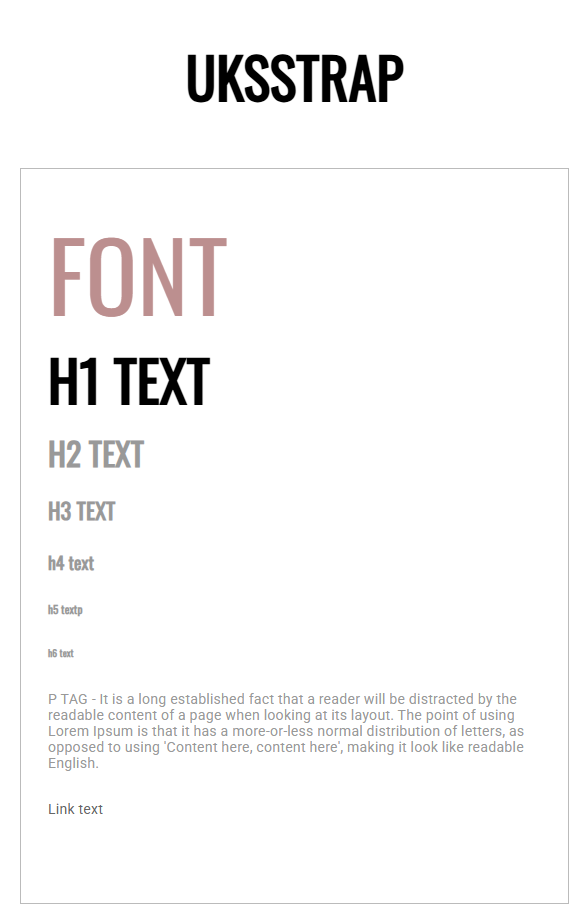
  <article>

    <section>
      <p class="h-big">font</p>
      <h1 class="lefts">h1 text</h1>
      <h2 class="lefts">h2 text</h2>
      <h3 class="lefts">h3 text</h3>
      <h4 class="lefts">h4 text</h4>
      <h5 class="lefts">h5 textp</h5>
      <h6 class="lefts">h6 text</h6>
      <p>P TAG - It is a long established fact that a reader will be distracted by the readable content of a page when
        looking at its layout. The point of using Lorem Ipsum is that it has a more-or-less normal distribution of
        letters, as opposed to
        using 'Content here, content here', making it look like readable English.</p>
      <p><a href="">Link text</a></p>
    </section>

  </article>
/* design default */
.h-big {
font-family: 'Oswald', sans-serif;
font-size: 6rem;
margin-bottom: 30px;
text-transform: uppercase;
line-height: 6rem;
color: rosybrown;
}
.lefts {
text-align: left;
}버튼 디자인 합니다.
버튼은 폼이라기 보다는 기본 UI에 가까우므로 디폴트디자인 CSS에 코딩 합니다.
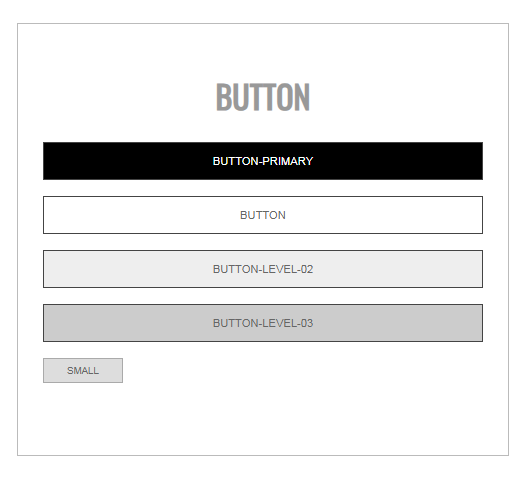
  <article>

    <section>
      <h2>button</h2>
      <button class="button-primary">button-primary</button>
      <button>button</button>
      <button class="button-level-02">button-level-02</button>
      <button class="button-level-03">button-level-03</button>
      <button class="button-small">small</button>
    </section>

  </article>
/* design default */
.button-primary {
background: #000;
color: #fff;
}
.button-level-02 {
background: #eee;
color: #666;
}
.button-level-03 {
background: #ccc;
color: #666;
}
.button-small {
width: 80px;
padding: 6px;
margin-bottom: 16px;
background: #ddd;
text-align: center;
font-size: 0.6rem;
border: 1px solid #aaa;
color: #666;
text-transform: uppercase;
transition: 0.5s;
cursor: pointer;
}라디오/체크박스 폼 디자인 합니다.
이것은 폼이므로 폼디폴트에 코딩 합니다.

  <article>

    <section>
      <h2>radio n check</h2>
      <div>
        <div>
          <label><input type="radio" name="subject" value=""> one</label>
          <label><input type="radio" name="subject" value=""> two</label>
        </div>
        <div>
          <label for="vehicle1"><input type="checkbox" id="vehicle1" name="vehicle1" value="Bike">I have a bike</label>
          <label for="vehicle2"><input type="checkbox" id="vehicle2" name="vehicle2" value="Car">I have a car</label>
          <label for="vehicle3"><input type="checkbox" id="vehicle3" name="vehicle3" value="Boat">I have a boat</label>
        </div>
      </div>
      <div><label><input type="radio" name="subject" value="">one</label></div>
      <div><label><input type="radio" name="subject" value="">two</label></div>
      <div><label for="vehicle1"><input type="checkbox" id="vehicle1" name="vehicle1" value="Bike">I have a bike</label>
      </div>
      <div><label for="vehicle2"><input type="checkbox" id="vehicle2" name="vehicle2" value="Car">I have a car</label>
      </div>
      <div><label for="vehicle3"><input type="checkbox" id="vehicle3" name="vehicle3" value="Boat">I have a boat</label>
      </div>
    </section>

  </article>
/* form default */
input,
select,
textarea {
border: 1px solid #ccc;
padding: 12px;
margin-bottom: 16px;
color: #999;
background: #fff;
}
input[type="radio"],
input[type="checkbox"] {
margin-right: 6px;
}
label {
margin-right: 16px;
}인풋폼 디자인 합니다.
이것은 디자인디폴트 폼디폴트 모두 코딩 합니다.
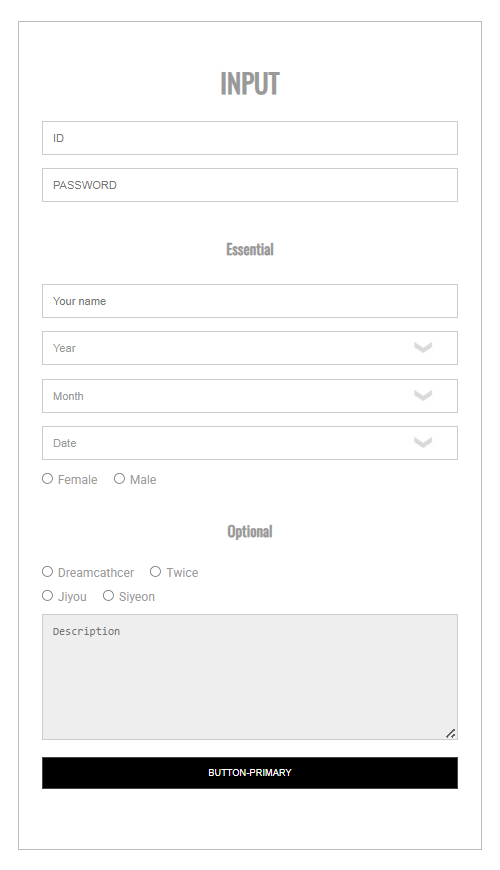
  <article>

    <section>

      <h2>Input</h2>

      <input type="text" placeholder="ID"></input>
      <input type="password" placeholder="PASSWORD"></input>

      <h4 class="margin-tops">Essential</h4>
      <input type="text" placeholder="Your name"></input>
      <div>
        <select>
          <option>Year</option>
          <option>2020</option>
          <option>2019</option>
          <option>2018</option>
          <option>2017</option>
          <option>2016</option>
        </select>
        <select>
          <option>Month</option>
          <option>1</option>
          <option>2</option>
          <option>3</option>
          <option>4</option>
          <option>5</option>
        </select>
        <select>
          <option>Date</option>
          <option>1</option>
          <option>2</option>
          <option>3</option>
          <option>4</option>
          <option>5</option>
        </select>
        <label><input type="radio" name="subject" value="">Female</label>
        <label><input type="radio" name="subject" value="">Male</label>
      </div>

      <h4 class="margin-tops">Optional</h4>
      <div>
        <label><input type="radio" name="subject" value="">Dreamcathcer</label>
        <label><input type="radio" name="subject" value="">Twice</label>
      </div>
      <div>
        <label><input type="radio" name="subject" value="">Jiyou</label>
        <label><input type="radio" name="subject" value="">Siyeon</label>
      </div>
      <textarea name="name" rows="8" placeholder="Description"></textarea>
      <button class="button-primary">button-primary</button>

    </section>

  </article>
/* design default */
.margin-tops {
margin-top: 30px;
}/* form default */
select {
width: 100%;
cursor: pointer;
appearance: none;
background: url(https://farm1.staticflickr.com/379/19928272501_4ef877c265_t.jpg) no-repeat 95% 50%;
}
textarea {
width: 100%;
background: #eee;
}
select option {
background: #ddd;
}
input[type="text"],
input[type="password"],
input[type="search"],
input[type="tel"] {
width: 100%;
}셀렉트 폼 디자인 합니다.
이것은 디폴트폼을 위에서 이미 다 처리했으니까 마크업만 하면 됩니다.
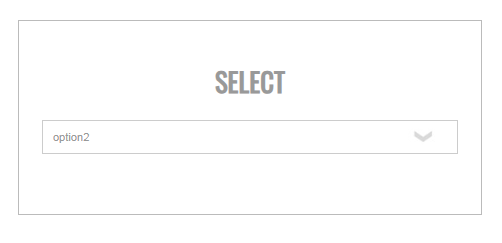
  <article>

    <section>
      <h2>Select</h2>
      <select>
        <option>default</option>
        <option>option1</option>
        <option>option2</option>
      </select>
    </section>

  </article>
인디케이터 디자인 합니다.
인디케이터는 웹 UI에서 네비게이션을 제외한 UI를 지칭하는 용어입니다.
인디케이터는 폼이라기 보다 디자인에 가깝기 때문에 디자인 디폴트에 코딩 합니다.
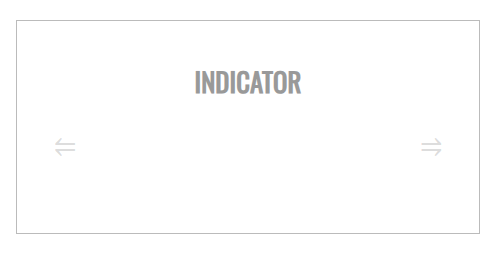
  <article>

    <section>
      <h2>Indicator</h2>
      <div class="space-betweens">
        <button class="indicator-button">⥢</button>
        <button class="indicator-button">⥤</button>
      </div>
    </section>

  </article>
/* design default */
.space-betweens {
display: flex;
justify-content: space-between;
}
.indicator-button {
width: 60px;
border: 0px solid silver;
border-radius: 0.5rem;
color: #ddd;
font-size: 2rem;
line-height: 2rem;
padding: 1rem;
cursor: pointer;
transition: 0.6s;
}
.indicator-button:hover {
background: #aaa;
color: white;
}탭메뉴 UI 디자인 합니다.
탭메뉴는 기능이 필요하므로 JS가 필요 합니다.

  <article>

    <section>
      <h2>tabmenu</h2>
      <div>
        <div class="space-betweens">
          <button class="tabmenu-button tablink tabmenu-color" onclick="openCity(event,'London')">London</button>
          <button class="tabmenu-button tablink" onclick="openCity(event,'Paris')">Paris</button>
          <button class="tabmenu-button tablink" onclick="openCity(event,'Tokyo')">Tokyo</button>
        </div>
        <div class="margin-tops centers">
          <div id="London" class="city">
            <h2>London</h2>
            <p>London is the capital city of England.</p>
          </div>
          <div id="Paris" class="city" style="display:none">
            <h2>Paris</h2>
            <p>Paris is the capital of France.</p>
          </div>
          <div id="Tokyo" class="city" style="display:none">
            <h2>Tokyo</h2>
            <p>Tokyo is the capital of Japan.</p>
          </div>
        </div>
      </div>
    </section>

  </article>


  <h4>Developed by Jeon jinuk</h4>


  <script>

    function openCity(evt, cityName) {
      var i, x, tablinks;
      x = document.getElementsByClassName("city");
      for (i = 0; i < x.length; i++) {
        x[i].style.display = "none";
      }
      tablinks = document.getElementsByClassName("tablink");
      for (i = 0; i < x.length; i++) {
        tablinks[i].className = tablinks[i].className.replace(" tabmenu-color", "");
      }
      document.getElementById(cityName).style.display = "block";
    }

  </script>
/* design default */
.tabmenu-button {
width: 100%;
}
.tabmenu-color {
background: red;
color: white;
}
.none {
display: none;
}
.centers {
text-align: center;
}<script>
// 탭 메뉴에서 특정 도시(city) 내용을 보여주고, 나머지 도시 내용을 숨기는 함수입니다.
// evt: 클릭 이벤트 객체, cityName: 보이게 할 도시의 id입니다.
function openCity(evt, cityName) {
var i, x, tablinks;
// "city" 클래스명을 가진 모든 요소를 가져옵니다.
x = document.getElementsByClassName("city");
// 모든 도시 내용을 숨깁니다.
for (i = 0; i < x.length; i++) {
x[i].style.display = "none";
}
// "tablink" 클래스명을 가진 모든 탭 버튼을 가져옵니다.
tablinks = document.getElementsByClassName("tablink");
// 모든 탭에서 선택된 스타일인 "tabmenu-color" 클래스를 제거합니다.
for (i = 0; i < x.length; i++) {
tablinks[i].className = tablinks[i].className.replace(" tabmenu-color", "");
}
// 선택된 도시(cityName)의 내용을 보여줍니다.
document.getElementById(cityName).style.display = "block";
}
</script>https://lshjju.tistory.com/706
HTML코드 라인 중 JS 를 배치하기 가장 좋은 자리
HTML코드 라인 중 JS 를 배치하기 가장 좋은 자리자바스크립트는 HTML 구조에서 다음과 같이 태그 바로 위에 삽입하는 것을 추천 합니다.(... 생략 ...)왜냐하면 화면 출력이 완료된 후에 자바스크립
lshjju.tistory.com
이렇게 UI KIT 를 완성하였습니다.
수고 하셨습니다!

'New' 카테고리의 다른 글
| 개발명세서 (0) | 2026.04.23 |
|---|---|
| 대표적인 모바일웹 앱 사례 (0) | 2026.04.15 |
| 네이티브 앱 사례 (1) | 2026.04.14 |
| 하이브리드앱 사례 (0) | 2026.04.14 |
| 모바일 웹 개발을 위한 위스와 미디어쿼리 스펙 추천 (0) | 2026.04.09 |